
Guide
AceStream Network Settings: Ports, Upload Limits and Faster P2P Streams
The AceStream network settings that actually change stream quality: reachability, UPnP and port forwarding, upload limits, WiFi band choice, cache size and the tests that prove each change worked.
 By Viktor Sokolov · Streaming Technology Reviewer
CONTENTS On this page
Most AceStream sessions that stall are not starved of speed. They are starved of reachability, choked by an upload limit set too high, or running on a crowded WiFi band while a better one sits idle. The network settings below are the ones that actually move stream quality, and they are all reachable from the AceStream app and the router in front of you. Work through them in order, testing after each change, and you will know exactly which setting earned its keep.
Start with reachability, not speed
A P2P client earns its speed by being reachable. If other peers cannot open connections back to your phone, AceStream can still download from peers it contacts first, but the swarm narrows and live edges wobble. The symptom looks like ordinary buffering, which is why it gets misdiagnosed so often. Before touching any speed setting, confirm reachability: open a stream you trust on your home network, note the peer count after a full minute, then repeat the same stream on a different network. If the second network gathers peers faster, the first network is restricting inbound connections, and the router steps below are the fix, not a faster plan.
Let the router help: UPnP and port forwarding
Most home routers can open the path automatically through UPnP, a setting usually found under the advanced or NAT options in the router panel. Turn it on, restart the engine, and retest the same stream. If UPnP is absent or your router refuses it, forward the listening port manually to your phone's local address, and give the phone a reserved address in the router so the rule survives reconnects. One forwarded port, correctly pointed, beats every booster app ever sold.
Set an upload limit that protects playback
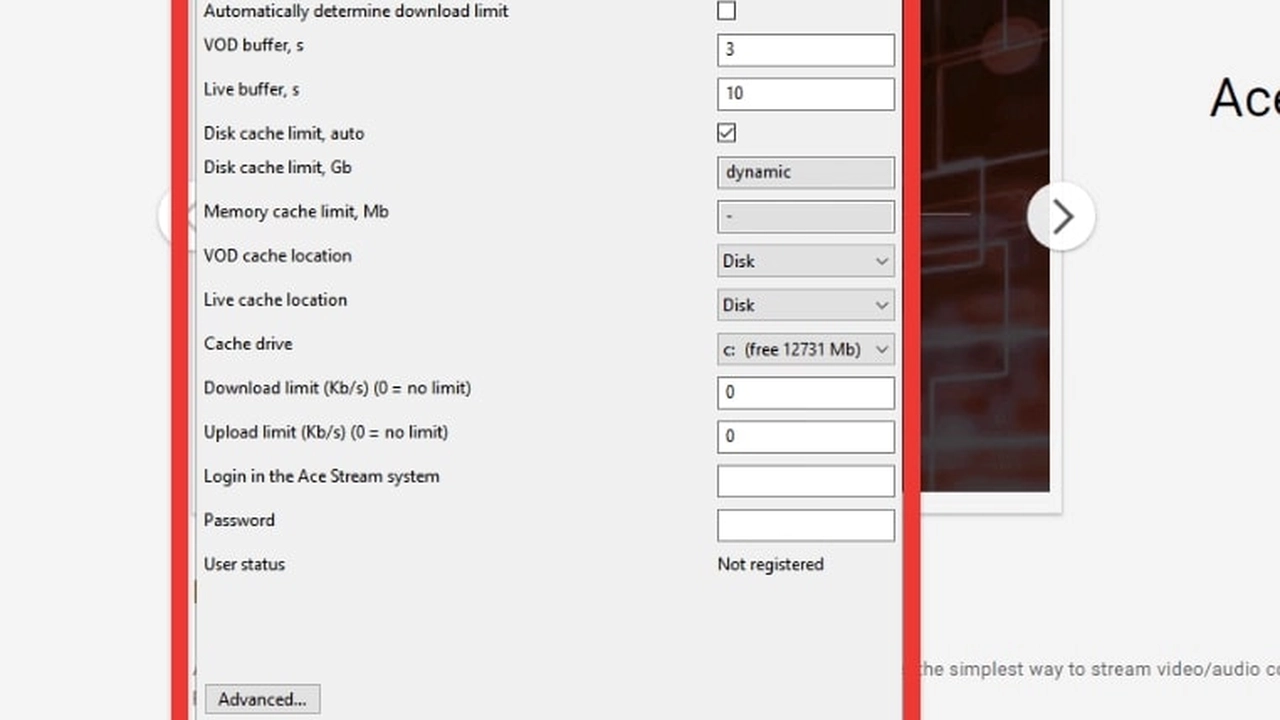
P2P shares in both directions, and an uncapped upload can saturate a modest connection so badly that the acknowledgements your download depends on queue behind it. Cap upload at roughly two thirds of your measured upload speed, leaving headroom for the requests that keep your own download flowing. The full accounting behind this trade is in our AceStream data usage guide. If streams smooth out the moment you cap upload, you have found the culprit, and the cap stays.
Pick the right WiFi band and spot
On a dual band router, the 5 GHz band usually carries a phone stream with less contention than the crowded 2.4 GHz band, at the cost of shorter range. Sit within a room or two of the router for 5 GHz, and fall back to 2.4 GHz only when walls force it. Move the phone, not just the setting: a single room closer to the router often changes peer counts more than any menu option. Test both bands on the same stream before deciding, because every home has its own interference map.
Size the cache for your connection
The engine cache smooths over gaps in peer delivery, and its size is a network setting in disguise. Too small, and every swarm dip reaches the screen. Too large on a nearly full phone, and storage pressure causes stutters of its own. Clear the cache from the app menu, restart the engine, then let a full session refill it before judging. When a stream that used to stall starts surviving dips, the cache did its job. Our AceStream buffering fixes put cache in its proper place in diagnosis order, after swarm health and before blaming the network.
Mobile data rules for P2P sessions
Metered connections change the arithmetic. P2P uploads count against the same allowance as downloads, and a long live session moves serious data in both directions. On mobile data, prefer shorter sessions, cap upload harder than on WiFi, and keep cloud backups and photo sync paused while streaming. If the plan throttles after a threshold, that throttle will look exactly like a dying swarm, so check the plan before blaming the stream.
Test each change on a known good stream
Change one setting at a time and judge each AceStream change on a stream you know is healthy. A dead swarm will ignore every improvement, and testing on it teaches nothing. Note peer counts, start time and stall count before and after each change, in plain notes on the phone. The setting that moves those three numbers is the one that mattered. Everything else returns to default, because a settings page full of guesses is harder to debug than the original problem.
When the network is not yours to change
Workplace, campus and hotel networks sometimes block the peer connections a P2P engine needs, and no phone setting overrides that policy. The clean test is a personal hotspot: if the same stream flies there and stalls on the shared network, the network is the verdict. On such networks, keep sessions short, avoid fighting the policy with tools you do not understand, and save serious viewing for a network you control. Our AceStream common problems guide lists the same test among its first checks for streams that never gather peers.
Good network settings are boring, and that is the point. Reachable engine, capped upload, right band, honest cache, one change at a time. Set those five, and Ace Stream stops feeling like weather and starts feeling like infrastructure: the same stream, on the same phone, simply arriving on time.
Quick Answers
Do I need to forward a port to use AceStream?
No. Most home routers open the path automatically through UPnP. Forwarding helps only when UPnP is absent or refused, and only the listening port needs a rule.
What upload limit should I set for AceStream?
Start at roughly two thirds of your measured upload speed, then adjust from there. If streams smooth out after capping, the uncapped upload was saturating your connection.
Is 5 GHz always better than 2.4 GHz for AceStream?
Usually, because it faces less contention, but its range is shorter. Test both bands on the same stream and keep the one with steadier peer counts.
Why does AceStream work on my hotspot but not on office WiFi?
Shared networks sometimes block the peer connections a P2P engine needs. If the same stream flies on a hotspot, the shared network is the verdict, not your phone.